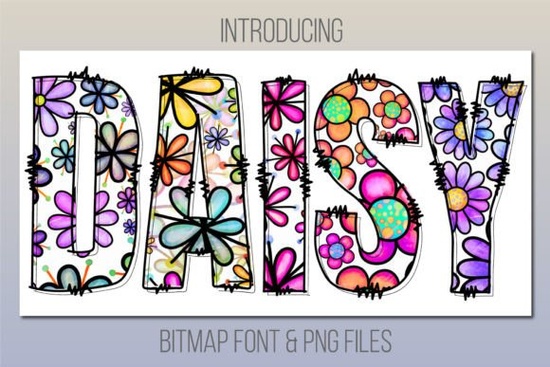
A cheerful daisy print color font like Daisy Font instantly adds a hand-drawn, playful touch to birthday cards, t‑shirts, mugs, and social graphics. Because it’s a bitmap color font, the petals and leaves are already textured and shaded – you don’t need to layer separate clip art or apply effects. That makes it a time‑saver for designers, crafters, and small businesses who want a polished result without extra steps.
What is a daisy print color font, and how does it work?
A color font, sometimes called a bitmap or SVG font, stores colour information right inside the character shapes. Unlike an ordinary outline font that only holds the shape, Daisy Font includes the pink, green, and yellow details of each daisy print letter. This means you see the full floral pattern as soon as you type. However, the trade‑off is compatibility – these fonts only work in specific design software that can read bitmap or OpenType‑SVG data.
If you open the file in an unsupported program, you’ll see a blank preview or a basic black silhouette. So it’s helpful to know which apps play nicely with the font.
Can I use Daisy Font with Cricut Design Space or other cutting machines?
No, Daisy Font is not compatible with Cricut Design Space, Silhouette Studio’s basic edition, or most browser‑based editors. Those platforms don’t render bitmap colour data. The same limitation applies to older versions of Word, older mobile apps, and many print‑on‑demand design tools. However, you’re not stuck if you cut or craft with a machine.
The product includes a bonus folder of high‑resolution PNG files. Each letter, number, and symbol is saved as a transparent PNG image. You can drag these into Cricut, Silhouette, or even free online editors, resize them, and create print‑then‑cut projects, sticker sheets, sublimation transfers, and more. Just remember to treat them as images, not as a typable font.
Which programs fully support the Daisy Font bitmap?
- Adobe Photoshop CC 2017 and newer
- Adobe Illustrator CC 2018 and newer
- Adobe InDesign CC 2019 and newer
- MacOS apps – Font Book, Pages, and Keynote (recent versions)
If your software isn’t listed, the safest route is to use the included PNGs. The font also tends to work in modern procreate updates that support colour SVG fonts, but always test on your device first.
What kinds of projects suit the Daisy Font playful style?
The daisy pattern is cheerful without being babyish, so it fits a wide range of creative work:
- Greeting cards and party invites – birthday, baby shower, garden party
- Print‑on‑demand items – t‑shirts, hoodies, tote bags, mugs
- Sublimation blanks – tumblers, keychains, pillow covers
- Digital planners and scrapbook pages – cover titles, decorative headers
- Social media graphics – quote posts, reels covers, Pinterest pins
- Small business branding – logo accent for a florist, café, or children’s boutique
Crafters report that the letters look especially good at large sizes, where the fine daisy details stay crisp. For smaller text, you can still get a visible pattern if you choose a thicker stroke design or simply use the PNGs at high resolution.
How do I install and use the Daisy Font in Photoshop or Illustrator?
Installation is the same as any other font: double‑click the file and use your system’s font installer. Then open Photoshop or Illustrator, and make sure you select a color font‑aware tool. In Photoshop CC 2017+, select the Type tool and pick Daisy Font from the font menu. The text will appear with the daisy pattern already applied. In Illustrator, use the same approach – if your document colour mode is RGB, the colours show immediately; in CMYK, they may convert, but the pattern remains.
One important note: do not try to change the text fill colour by picking a solid swatch, because that overrides the embedded artwork. Instead, use layer effects carefully if you need subtle tweaks.
Are there alternatives with a similar cheerful or spooky vibe?
If you love the daisy look but want to see what else is out there, our colorful fonts collection includes a mix of floral, whimsical, and hand‑lettered styles that pair nicely with craft projects. For something edgy yet still playful, Spiderweb Army Font brings a completely different mood – perfect for Halloween designs, dark romance themes, or grunge‑inspired apparel. Both options help you build a varied font toolkit without leaving the Creative Fabrica ecosystem.
What about working with the PNG bonus files – any tips?
When you open the bonus folder, you’ll see each character as an individual PNG. To spell out a word, place each letter on your canvas manually. Here’s a quick workflow that keeps spacing consistent:
- Open your design program and create a grid or guide for alignment.
- Drag in the first letter PNG, position it, and note its x/y coordinates.
- Copy and paste the letter, then swap the image source to the next character. Nudge it horizontally by a fixed amount (e.g., 100px) each time.
This approach works in Cricut Design Space, Canva, and even PowerPoint. Keep the images on a single layer if you plan to print‑then‑cut, so the machine reads them as one compound object.
Quick tip: Always double‑check your software’s ability to render OpenType‑SVG or bitmap colour fonts before purchase. If you’re ever in doubt, use the high‑resolution PNG files included with Daisy Font – they are compatible with every design tool, no special version required.
Try It Free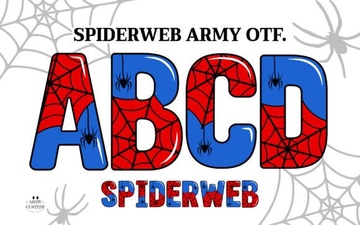 Spiderweb Army Font: Bold Typography for Military & Web Art
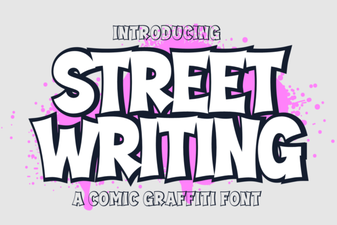 Street Writing Font Inspiration for Creative Projects
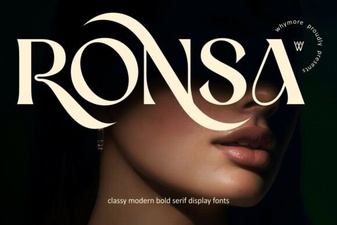 Enhance Your Designs with Ronsa Font
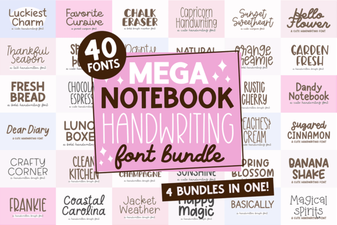 Mega Notebook Handwriting Bundle Font for Journaling
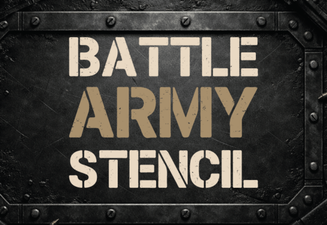 Bold Battle Army Stencil Font Ideas for Your Design Projects
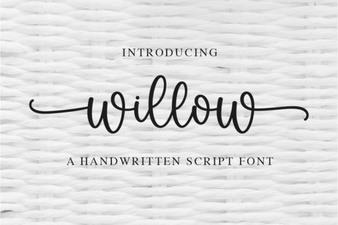 Willow Font: Ideas for Creative Design Projects